He
The Forms tab in the NowForce mobile app enables users to share and document relevant incident information with the control room. Incident forms can vary in design and function, from read-only forms to comprehensive forms with dynamic and editable fields for both the control room and responders.
Step 1: Opening the Incident Form
To open an incident’s form, tap “Form” in the “Incident” menu.
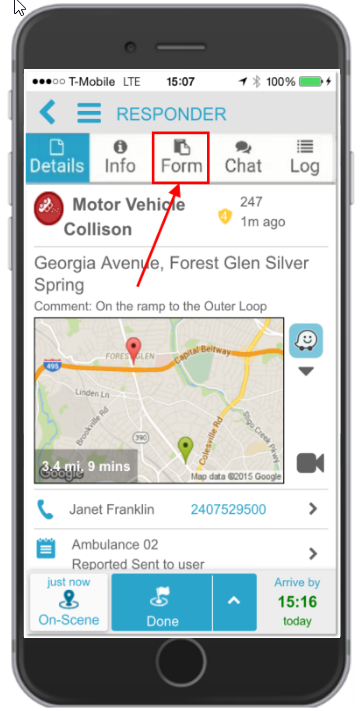
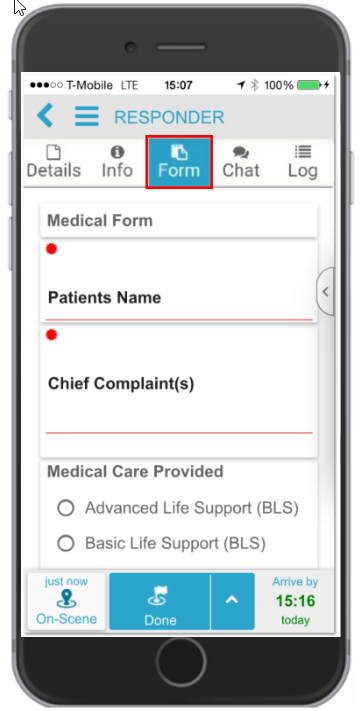
The form opens and displays the custom form assigned to the incident.
Step 2: Using the Form Options Menu
The Form Options menu allows you to quickly navigate through the form and locate fields. Additionally, you can adjust the display mode and zoom level of the form in this menu.
Tap the arrow on the right side of the form to open the Form Options menu.
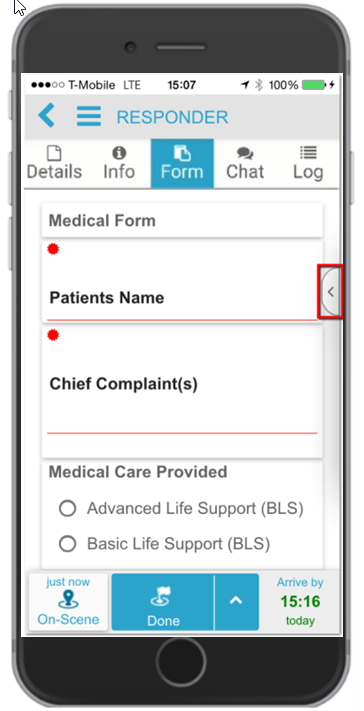
The Form Options menu opens on the right side of the screen.
Step 3: Using the Form Index
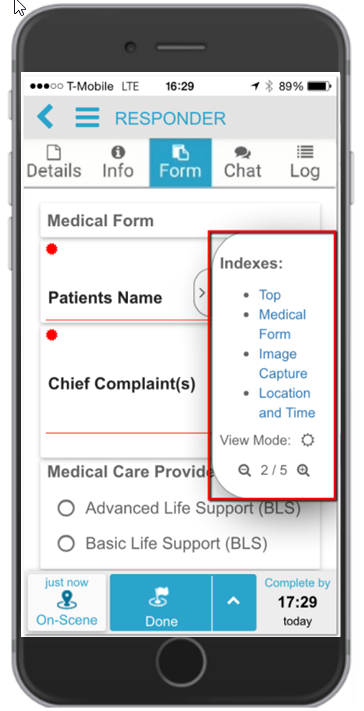
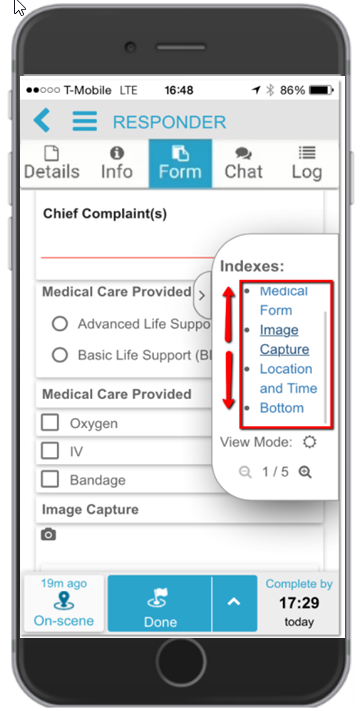
When an incident form is designed, it is divided into sections. These sections are listed in the Form Options menu under “Indexes”. You can scroll through the index to find the desired section. When you have found the desired section, tap the section title and the form will jump to that location.
Step 4: Form Display Mode
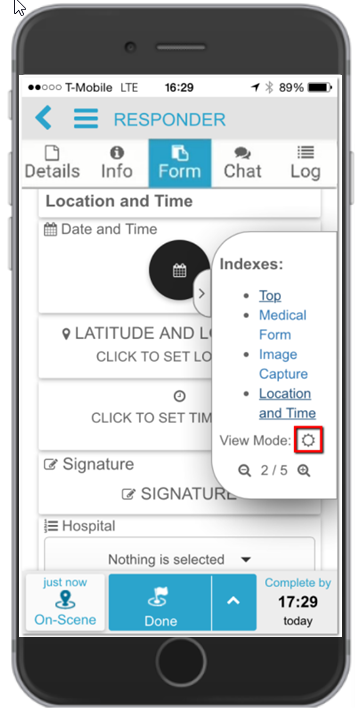
The display mode allows you to switch between day and night view. Tap the “Display” icon to change from the default day mode to night mode.
Step 5: Zooming in on the Form
You can zoom in and out on the form. There are 5 zoom levels, with level 1 being the smallest view.
To enlarge the form, tap the “+ Magnifying Glass” icon. You can zoom in further by tapping the “+ Magnifying Glass” icon again. Each time you do this, the zoom level increases until the maximum zoom level of 5 is reached.
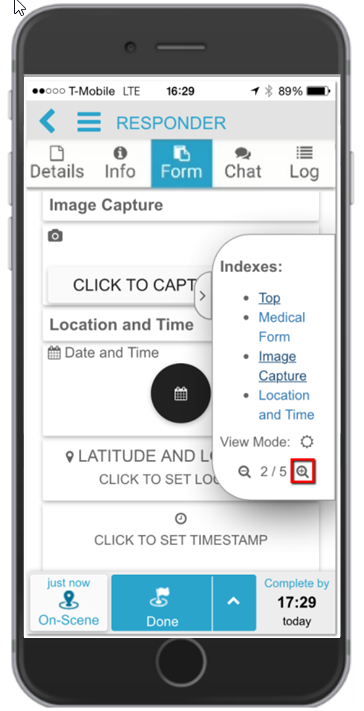
To reduce the form size, tap the “- Magnifying Glass” icon. You can zoom out further by tapping the “- Magnifying Glass” icon again. Each time you do this, the zoom level decreases until the minimum zoom level of 1 is reached.
Step 6: Required Form Fields
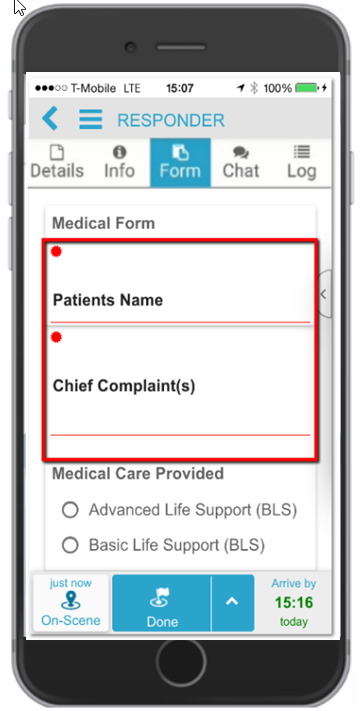
Incident forms may contain required fields. These required fields are underlined in red and also have a red icon in the upper left corner of the field.
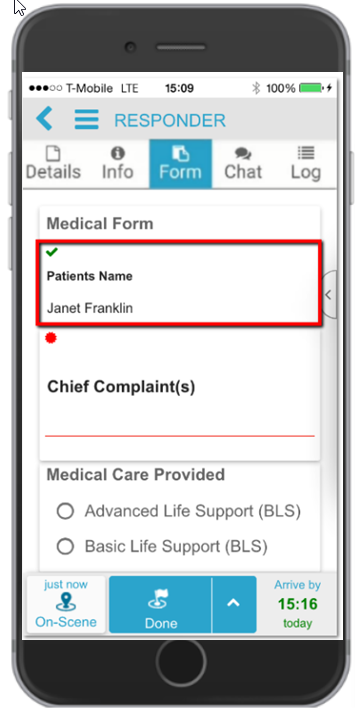
When a required field is completed, the underline disappears and the red icon changes to a green checkmark.
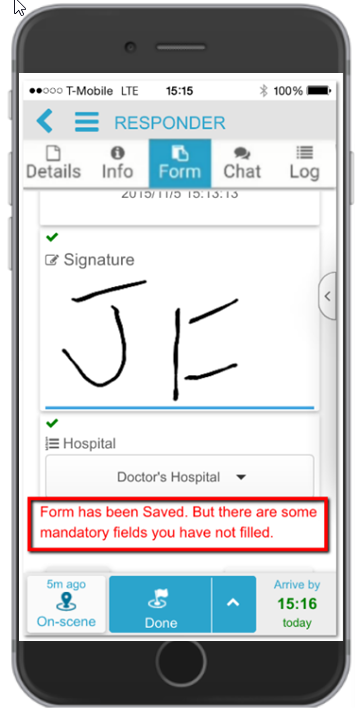
You can save a form without completing the required fields. In this case, a notification will appear confirming that the form has been saved, but there are still required fields that have not been completed.
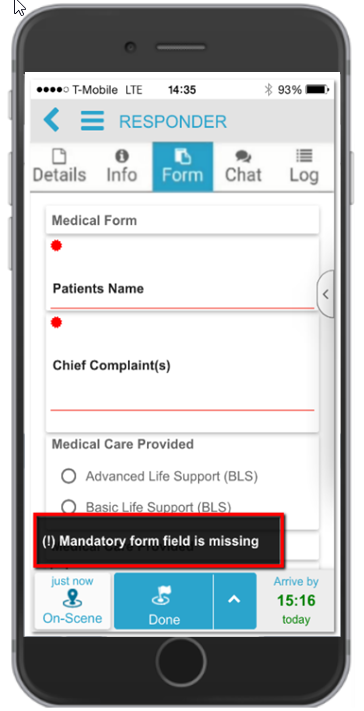
If you tap “Done” to complete your response to an incident and a required field in the incident form is not filled out, a notification will appear indicating that required fields are missing. Under these circumstances, your status cannot be updated until you have completed all required fields.
Step 7: Read-only Forms
The system administrator can create forms with read-only fields. You cannot edit these fields and the information in them is for information only.
Step 8: Form Field Types
Forms can contain various field types, such as text boxes, radio buttons, checkboxes, image capture, date and time, latitude and longitude, timestamp, signature, and dropdown lists.
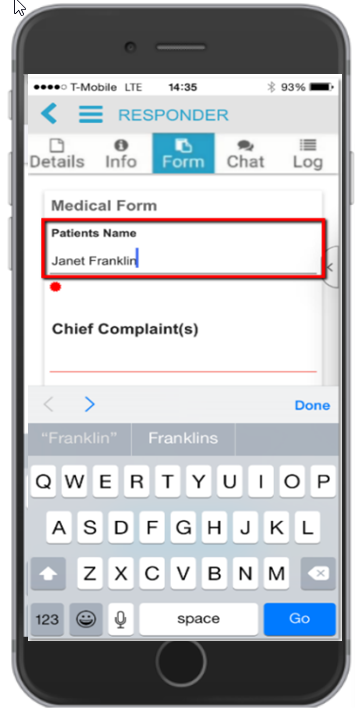
Text Box and Text Area
Text boxes and text areas allow you to enter free text. These fields may be limited to a predetermined number of characters. Tap the field to enter your response.
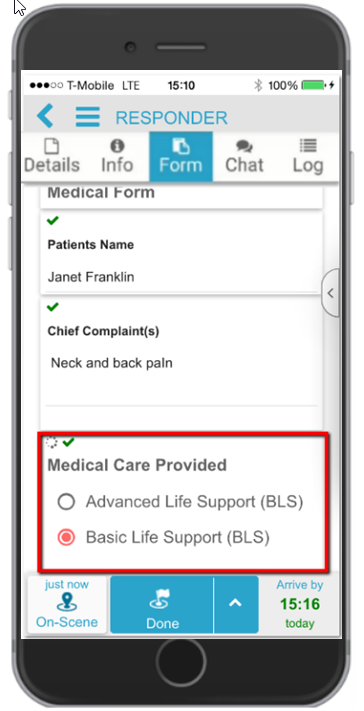
Radio Button
Radio buttons allow you to select one answer from a predefined list of options. Tap the circle to the left of the item you want to choose.
Checkbox
Checkboxes allow you to select multiple answers from a predefined list of answers. Tap the required checkboxes to the left of the choices.
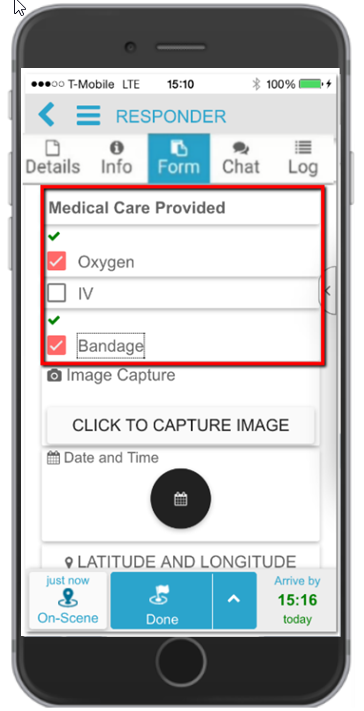
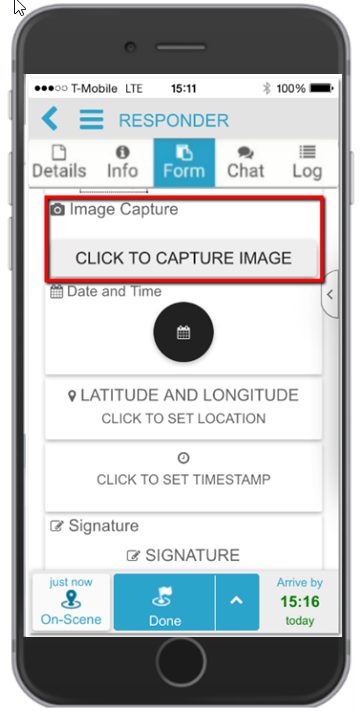
Image Capture
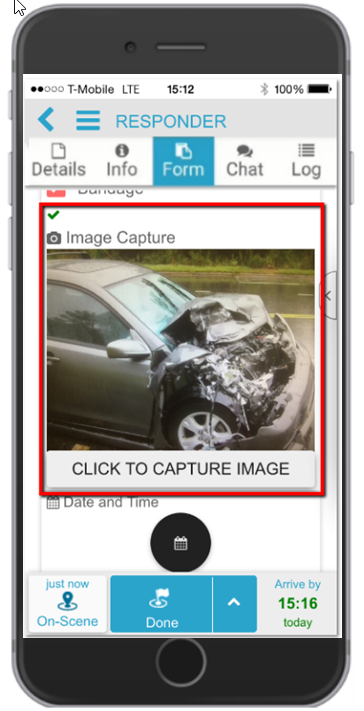
The image capture feature allows you to take a photo of the incident using your device’s camera and share the image in real-time with the control room and other responders.
Tap “CLICK TO CAPTURE IMAGE” to open your device’s camera. Take a photo using your device’s camera. The Responder app automatically adds the photo to the form.
Date and Time
Select the calendar icon to add a date and time to the form.
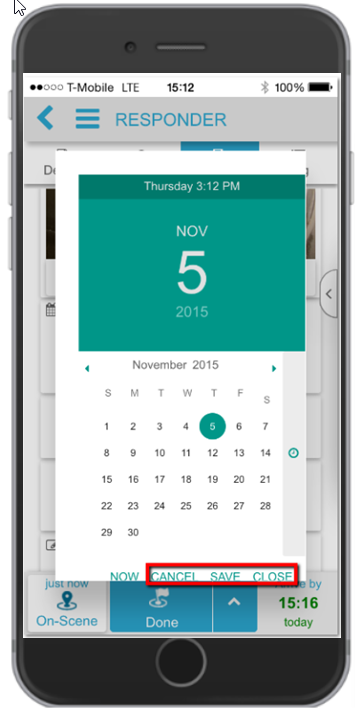
A calendar will open. Select the desired date on the calendar. Tap “NOW” at the bottom of the calendar to set the date and time to the current date and time. To cancel, save, or close the pop-up, select the desired option at the bottom of the calendar.
Latitude and Longitude
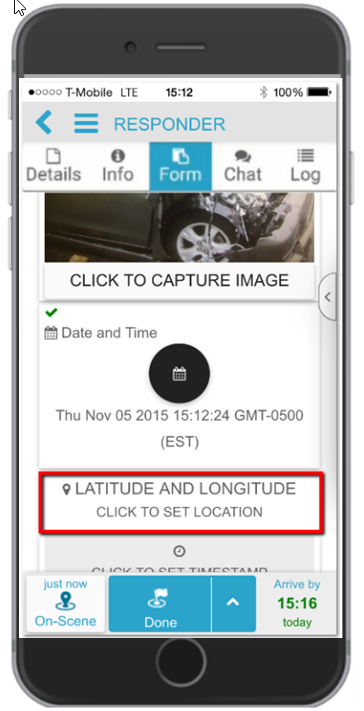
You can save your current location in the form by tapping “CLICK TO SET LOCATION”.
Timestamp
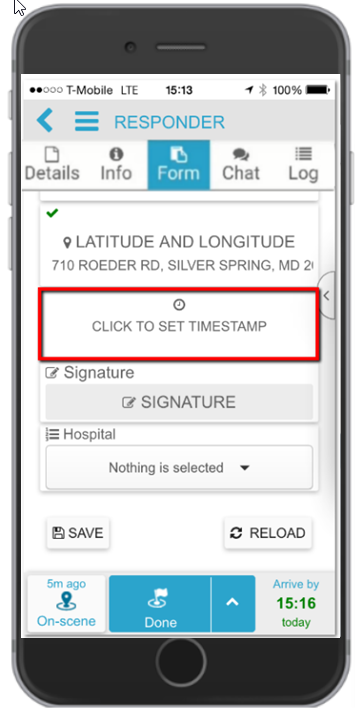
You can add a timestamp to the form by tapping “CLICK TO SET TIMESTAMP”.
Signature
To save a signature in the form, tap “SIGNATURE”. Typically, as a responder, you are required to sign the form, but the form may also require witnesses to sign it. Use the touchscreen to sign the form with your finger or a stylus pen.
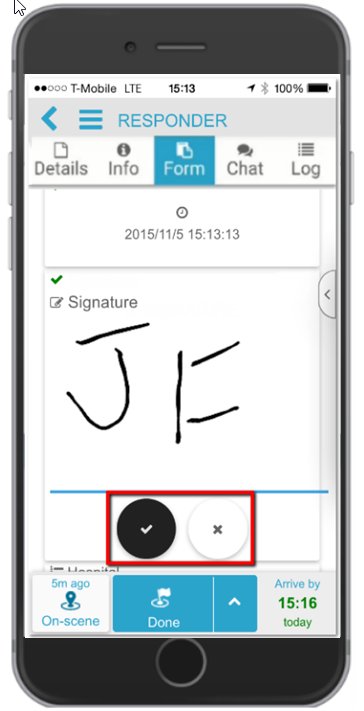
Save the signature by tapping the “Checkmark” icon.
Dropdown List
Open a dropdown list by tapping the down arrow. You can select items in the dropdown list in the following ways:
- Select all items in the list
- Select items by filtering the list
- Select items by scrolling through the list
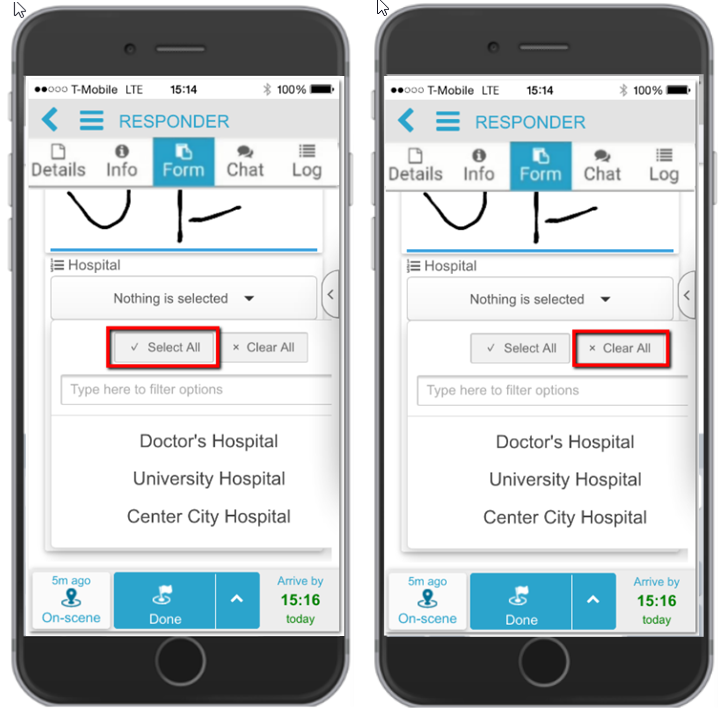
You can filter the items in the dropdown list by entering your filter criteria in the “Filter” box. As you type, items matching your filter criteria appear in the list. Select the desired item and tap “Done”.
Step 9: Saving and Reloading the Form
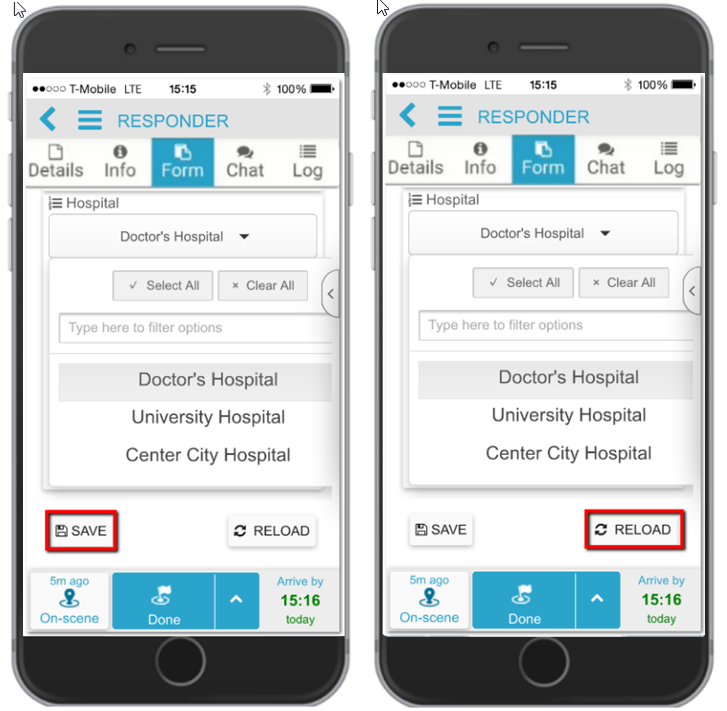
Tap “SAVE” to save the incident form. If needed, you can reload the form by tapping “RELOAD”.