
Creating Equipment Elements
This guide will walk you through creating equipment elements in our system. Equipment elements are important for defining the various tasks and roles of users. Follow the steps below to create an equipment element.
1. Requirements
To create an equipment element, you must be assigned to a role that has the appropriate privileges. Ensure that you have the correct permissions before you begin creating equipment elements.
2. Accessing the Organization settings
To access the Organization settings, follow these steps:
- Go to the main screen of the application.
- Select “Settings” in the toolbar at the top of the screen.
- Choose “Organization” from the drop-down menu.
3. Navigating to the equipment page
To open the page for managing equipment elements, follow these steps:
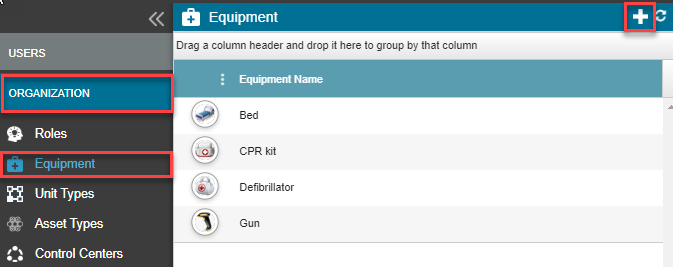
- After you have opened the Organization settings, select “Equipment” in the left-hand menu.
- The “Equipment elements” table will open, displaying all existing equipment elements in alphabetical order.
4. Adding a new equipment element
Follow these steps to add a new equipment element:
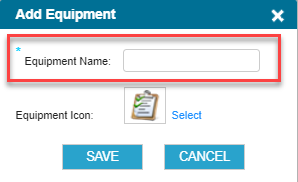
- Click on the “+ Add” icon in the upper right-hand corner of the page. An “Add equipment” pop-up window will open.
- Enter the name of the new equipment element in the “Equipment element name” field.
- Click on “Select” to change the icon of the equipment element.
- Click on “Save” to save the new equipment element.
5. Editing an equipment element
To edit an existing equipment element, follow these steps:
- Find the equipment element in the “Equipment elements” table.
- Click on the pencil icon next to the equipment element that you want to edit.
- An editing pop-up window will open where you can change the name and icon of the equipment element.
- Click on “Save” to save the changes.
6. Deleting an equipment element
Please note: Deleting an equipment element can have consequences for the users who are assigned to it.
To delete an equipment element, follow these steps:
- Find the equipment element that you want to delete in the “Equipment elements” table.
- Click on the trash can icon next to the equipment element.
- A confirmation window will appear, asking you to confirm the deletion.
- Click on “Delete” to permanently delete the equipment element.
You have successfully created new equipment elements in our system. Remember to consider the impact of your changes on users and roles before you edit or delete equipment elements.
